















3rd-Gen Unlimited eSIM manual
3rd-Gen Unlimited eSIM manual
3rd-Gen Unlimited eSIM Quick Start Guide
Video Setup Guide
Before You Start
- Make sure your device is unlocked.
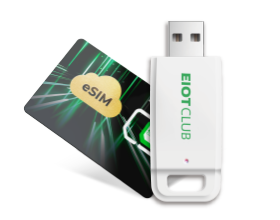
- Make sure your device supports the EIOTCLUB physical eSIM card.
- Enable Data Roaming if required.
- Make sure the preloaded eSIM profile is connected to the network.
Step 1: Insert the Physical eSIM Card
Insert the EIOTCLUB card into your phone. SIM Slot 1 is recommended.
After inserting the card, confirm that the preloaded profile can access the internet. If there is no connection, configure the APN based on your region.
Step 2: Check Your Network Connection
Make sure the preloaded profile is connected to the network. A working connection is required before downloading and switching profiles.
If the card cannot connect, turn on Data Roaming and set the APN manually.
APN Settings for the Preloaded Profile
bicsapnNo username or password required
america.bicsNo username or password required
asia.bicsNo username or password required
How to Set the APN Manually
Android
- Go to Settings > Mobile Data Network > Mobile Data.
- Enable Data Roaming.
- Open Access Point Names (APNs).
- Tap the icon in the upper-right corner, then choose New APN.
- Enter the APN for your region.
- Tap OK to save.
iPhone
- Go to Settings > Cellular or Mobile Data.
- Tap Cellular Data Network.
- Turn off Use Carrier Settings.
- Enter the required APN information and save the settings.
- Enable Data Roaming.
Step 3: Download the EIOTCLUB App
Download and open the EIOTCLUB App.
Download the EIOTCLUB App ↗Step 4: Add the Card to Your Account
After signing in, the App will automatically search for your physical eSIM card.
If the card is not detected automatically:
- Tap Add.
- Scan the ICCID or enter it manually.
- Tap Next.
Your physical eSIM card will then appear in the SIM Card section.

Step 5: Add an eSIM Profile
Option A: Purchase an eSIM Profile
- Open eSIM Shop.
- Choose a Local, Regional, or Global plan.
- Select your destination and preferred data package.
- Complete your purchase.

Option B: Add an Existing eSIM Profile
If you have already purchased an eSIM profile:
- Tap Add.
- Scan the QR code, upload a QR code image, or enter the activation code manually.
- Tap Download and Install.

Continue Using the Preloaded eSIM Profile
You can continue using the preloaded eSIM profile included with your card. Purchase a compatible data plan and top up the profile to use it like a regular SIM card.
Local and international data plans are available for everyday and travel connectivity needs.
Quick Refill Data Plan ↗Activate an eSIM Profile
- Return to the Home page in the EIOTCLUB App.
- Refresh the list.
- Tap Remote.
- Select the profile you want to use.
- Activate the profile.

Please allow a few moments for network registration.
To check activation status, open Operation Records from the menu to view the operation history and profile status.
If no connection is available, please:
- Enable Data Roaming.
- Verify the APN settings.
- Confirm that the selected profile is active.
Frequently Asked Questions
Why can’t my card connect to the network?
Make sure your phone is unlocked, Data Roaming is enabled, and the APN is set correctly for your region. Also check that the card is inserted properly and the current profile is active.
Can I use third-party eSIM profiles?
Yes. The card supports EIOTCLUB eSIM profiles as well as compatible third-party eSIM profiles.
Why is there still no network after switching profiles?
It may take a short time for the new profile to register on the network. Please wait a moment, confirm the selected profile is active, and restart your phone if needed.
Does this card support all countries and regions?
Coverage depends on the eSIM profile or plan currently in use. Please refer to the latest coverage table for details.
Use with IoT Devices
The EIOTCLUB 3rd-Gen Unlimited eSIM can also be used with compatible IoT devices. Once the physical eSIM card is inserted, you can manage it remotely through the EIOTCLUB App without removing the card.
Supported Devices
- 4G/5G routers
- Security cameras
- Trail cameras
- GPS trackers
- Industrial IoT devices
- Smart meters
- Other unlocked IoT devices
IoT Setup
- Insert the EIOTCLUB physical eSIM card into your IoT device.
- Power on the device and make sure it connects to the mobile network.
- Configure the APN for your region if required.
- Download and sign in to the EIOTCLUB App.
- Add your physical eSIM card to the App.
Once added, you can remotely download new eSIM profiles, purchase data plans, top up the preloaded profile, switch profiles, and check Operation Records.
IoT Troubleshooting
If your IoT device cannot connect:
- Verify that the device is unlocked.
- Confirm that the eSIM profile has been activated.
- Check the APN settings.
- Restart the device.
- Move to an area with better signal coverage.
- Allow several minutes for network registration after switching profiles.