

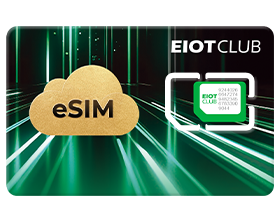


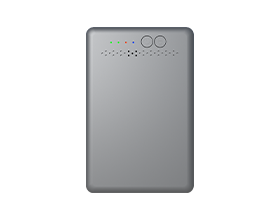












If your Reolink 4G camera cannot connect to the network after you insert EIOTCLUB SIM card, it may not have automatically selected the correct APN (Access Point Name).
Before changing any settings, make sure your SIM plan is activated and has available data. Then check whether your camera needs APN configuration based on where you purchased it.
Does Your Camera Need APN Configuration?
Camera and SIM plan bundles purchased from us
If you purchased a Reolink camera bundled with our SIM plan, the APN is usually already configured. You normally do not need to set it again. If the camera cannot connect, please contact our support team first.
Cameras purchased elsewhere
If you purchased your Reolink camera from another seller and use it with a SIM card purchased separately from us, follow the instructions below if the camera cannot connect.
If your camera already connects normally, no changes are needed.
This guide covers importing APN settings through a microSD card. Requirements may vary by camera model. Please confirm that the instructions apply to your camera before proceeding.
2. Find Your APN Settings
Locate the ICCID (SIM card number) printed on your SIM card holder. Check its first six digits, then use the table below to find the APN for your card and the country or region where you will use it.
| First Six Digits of ICCID | Region / Notes | APN |
|---|---|---|
| 893204 | Europe / global | bicsapn |
| Americas | america.bics | |
| Asia / Oceania | asia.bics | |
| 891030 | Asia | mobile |
| North America | altanwifi | |
| 898523 | / | wbdata |
| 898520 | / | mobile |
| 898522 | / | mobile.three.com.hk |
| 898830 | / | sl2sfr data641003 |
Please note:
- The same ICCID prefix may have different APNs for different regions. Check both the prefix and the country or region of use.
- If your ICCID prefix is not listed, contact support. Do not use an APN assigned to a different prefix.
3. Prepare the Tools and Configuration File
What You Need
- Your Reolink 4G camera and our SIM card.
- A microSD card compatible with your camera.
- A card reader that can read and write to the microSD card.
- A computer.
The card reader is used to copy the APN configuration file to the microSD card. The SIM card provides the mobile network connection, while the microSD card transfers the configuration file to the camera.
Prepare the APN Configuration File
The APN name is only one setting within the configuration file. Do not simply type the APN name into an arbitrary text file and import it. The file must use the filename, extension, and content format required by Reolink for your camera model.
First, review How to Import APN information to Reolink 4G Cameras. Prepare the file according to the instructions for your model, and enter the APN you found in the table above.
Please follow these requirements:
- Enter the APN exactly as shown, without extra spaces.
- Complete any other fields according to the applicable instructions. Do not guess the values.
- Keep the required filename and extension. Avoid duplicate extensions such as.txt.txt.
- The APN in an official example file may not be suitable for our SIM card. Check it before use.
If you are unsure how to prepare the file, provide support with your full camera model, ICCID, and country or region of use before proceeding.
4. Import the APN Using a microSD Card
Step 1: Watch the Tutorial
We recommend watching our Reolink APN setup video in full before starting. It demonstrates how to prepare and import the configuration file.
If your camera model, interface, or device prompts differ from those shown in the video, confirm that the tutorial applies to your camera.
Step 2: Copy the Configuration File
Connect the microSD card to your computer using the card reader. Following the instructions for your model, copy the configuration file to the root directory of the microSD card.
The root directory is the location you see immediately after opening the card on your computer. Do not place the file inside another folder.
Once the file has been copied, safely eject the microSD card.
Step 3: Insert the Cards and Import the Settings
Following the instructions for your camera model, power off the camera, insert the SIM card and prepared microSD card, and then power on the camera to import the settings.
Follow the tutorial’s sequence and the camera’s prompts. If the instructions require a restart or any additional steps, complete them as directed.
Step 4: Check the Connection
After completing the import and any required follow-up steps, check whether the camera connects to the mobile network and can be accessed normally in the Reolink App.
5. What If the Camera Still Cannot Connect?
Check the following:
- SIM plan status: Is the plan activated, and does it have available data?
- APN settings: Does the APN match your ICCID prefix and region of use?
- Configuration file: Are the filename, extension, content format, and location correct for your camera?
- Camera model: Does your model support this APN import method?
- Network signal: Is a mobile network signal available where the camera is installed?
If the issue continues, send the following information through a private support message:
- Full camera model.
- SIM card ICCID.
- Country or region where the SIM card is being used.
- APN you entered.
- Whether you have attempted to import the configuration file.
- Screenshots of errors in the App or the camera’s voice prompt.
This information will help us identify the issue and provide the appropriate instructions.
6. Frequently Asked Questions
Do I need to configure the APN again for a camera bundle purchased from you?
Usually, no. If the camera cannot connect, contact support first.
Do all Reolink 4G cameras use the same import method?
Refer to the official instructions for your specific model. This guide covers importing APN settings through a microSD card. Confirm that your model supports this method before proceeding.
Why does one ICCID prefix have multiple APNs?
Some prefixes have different APNs depending on the region of use or the SIM card’s specific configuration. Use the table above, and contact support if you cannot determine which APN applies.
Can I configure the APN in the App without a card reader?
This depends on the settings supported by your camera model. If the applicable instructions require importing through a microSD card, you will need a compatible microSD card and card reader.
What should I do if I use this SIM card in a phone?
Enable data roaming and configure the APN required for your SIM card. For camera setup, follow this guide and the instructions for your specific model.
Helpful Links: